MS Office Document Properties
Introduction

Microsoft Office is one the world most used Office suites, certainly in business, but when it saves your file, did you know that it doesn’t only save the text you have been working on.
In addition to commonplace information, such as filename, path and dates created and last modified, which all files have, MS Word, Excel and PowerPoint also save to a document a host of additional data within the file, often without your knowledge.
This information about your document can be useful, for example in finding:
- which Word documents you last worked on, or
- which Excel spreadsheets you initially created.
Indeed, it used to be the case that when Word saved a document for the first time, the first line of a document became a hidden document property called Title. This could be embarrassing if you subsequently changed the first line, and found out that it was still possible to determine what you originally wrote.
File size is not a good determiner about how big your work is. A big size may only mean that there are a lot of graphics embedded. For this reason, Microsoft have also exposed various statistics, such as number of pages, words, paragraphs, characters, slides and hidden slides, all of which are read-only Microsoft Office document properties.
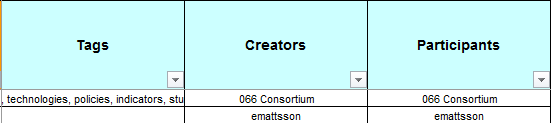
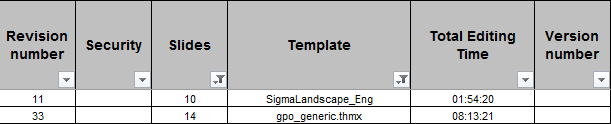
As well as information about the current state of the document, Office also likes to store information about its past. Metadata such as Template, Total Editing Time and Creator (who originally created the document).
All of these are collectively called Microsoft Office “metadata” or “document properties”. Proper use of this can be a very important part of document management processes.
If you are interested in Word specifically, see this article on MS Word metadata.
Problems with using metadata
Apart from perhaps not knowing that this data was created, the biggest problem about these document properties is: How can I best use it? As the program automatically creates and monitors them, saving the metadata is perhaps less of a challenge than accessing them.
Now it is possible to view them in individual files. See this article about viewing MS Office propeties within Office, in the File menu or the Document Information Panel, and this article about viewing them in Explorer. However, that is only possible to be done singly, for a single document at a time. What if you wanted to search through thousands of documents for … what if you don’t know what you are looking for in the first place?
For example, if my name is Phillip Burton, then maybe my name is recorded in the computer as Phillip Burton (with two Ls), but maybe an administrator set it up as Philip Burton (with one L) – or maybe just Phillip – or maybe used my initials, PB. Or maybe he used my job title? What if I have been set up one way on my desktop, and another way on my laptop (which can easily happen).
This article and the accompanying spreadsheet shows the types of real setups which have been used in various computers for Word documents. (Other articles for Excel and PowerPoint documents are also available.)
So really, the hardest part might not be searching for specific items (although that is hard by itself). The hard part might be knowing what is actually there, what various combinations of phrases might have been used. And also, how do you search the statistics effectively?
Because you might not be able to guess what text has been used, then the easiest way is to catalog it into a spreadsheet or table, and then you can sort and filter for the multiple versions for the one (or more) person. What do you think?
I'll speak more about this later, but first - what actually are these document properties?
What are these MS Office metadata?
A lot of metadata is saved within Microsoft Office documents (Microsoft Word, Excel and PowerPoint) which can reveal a lot about this creator, and these can be captured by both Filecats Professional and Filecats Metadata.

In additional to metadata common to lots of types of documents, such as Title, Author, Company and Categories, Filecats Professional can also extract these Microsoft Office specific common metadata:

- Byte Count
- Character Count
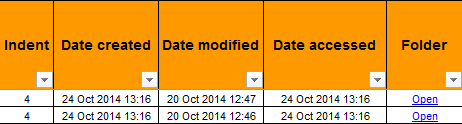
- Date Created
- Date Printed
- Date Saved
- Last Author
- Line Count
- Page Count
- Paragraph Count
- Word Count
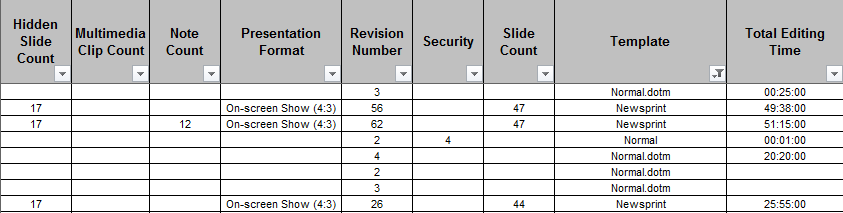
Other metadata include:
- Client ID
- Contributor
- Division
- Document ID
- Hidden Slide Count
- Manager
- Multimedia Clip Count
- Note Count
- Presentation Format
- Revision Number
- Security
- Slide Count
- Template
- Internal Total Editing Time
- Version





How can I catalog metadata?
Because of the problems of using these advanced properties for multiple files, we have developed two programs which specifically resolve this:
- Filecats Professional is for computers with Microsoft Excel, and imports the information straight into a spreadsheet. Filters are already set up, so you can create power PivotTables and analyses within a couple of minutes. (Don't believe me? See this first of articles on how easy PivotTables can be.)
- Filecats Metadata does not require Microsoft Excel, and imports the information straight in a table. From there, filtering, sort and analyses are very swift to do. (See this page of the manual for more details).
The video below shows how quickly and easily document properties can be cataloged. An example spreadsheet generated by the metadata extractor Filecats Professional of several thousand Microsoft Office files is below:

31 October 2014
CatalogueMicrosoftOffice141031.zip
Compressed archive in ZIP format [827.9 KB]
Why not download a free 7-day trial today, and see how quickly you can access Microsoft Office file properties?
Was this page useful to you? If so, please like using the buttons to the left or top of this page.
For more articles, click here. Alternatively, use the Features Tour below.