Mapping GPS co-ordinates with time
GPS co-ordinates can also be mapped by time.
Firstly, four things are needed:
- Latitude in decimal form. How to convert degrees/minutes/seconds into decimal form is discussed in the article "Converting GPS degrees/minutes/seconds into decimal form".
- Longitude in decimal form,
- Date taken, and
- Microsoft Excel 2013 (or Office 365 ProPlus) with Power Map. This regards either a standalone version of Excel 2013, Office 2013 Professional Plus, or an Office 365 ProPlus subscription. It is not available in all version of Office 365 or 2013, unfortunately.
Most of the information is available in Windows Explorer - see the article "Obtaining Latitude and Longitude from Windows Explorer files" - which will then need converting into decimal form. These columns are extracted using Filecats Professional, and these columns can be filtered and copied and pasted into a new spreadsheet as follows:


Highlight the table and click on Insert - Map.
If used for the first time, you may need to enable the Power Map, as shown to the right.
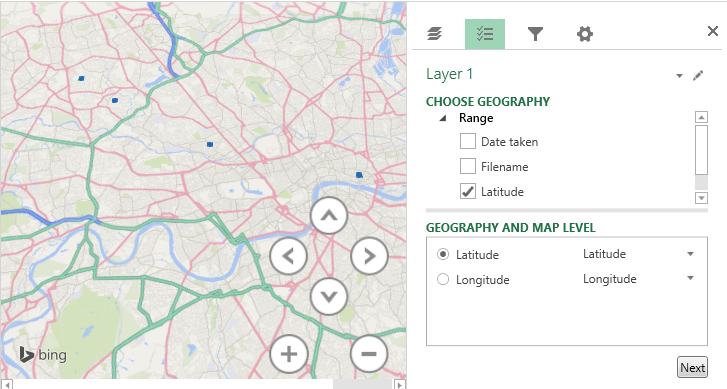
A new window will then open, showing all of the photograph locations, based on the GPS data.
Latitude and Longitude have already been mapped correctly, but Date Taken has not been mapped. Clicking Next allows you to map to Height, Category and Time. Dragging Date Taken into Time correctly associates this field.

The time-bar at the bottom of the screen allows you to hide any photos taken before that date.

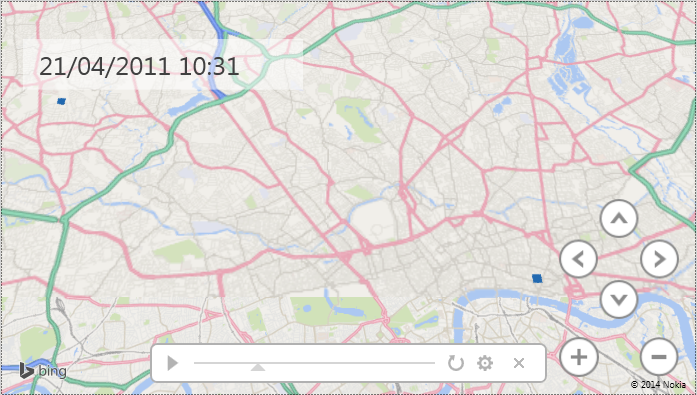
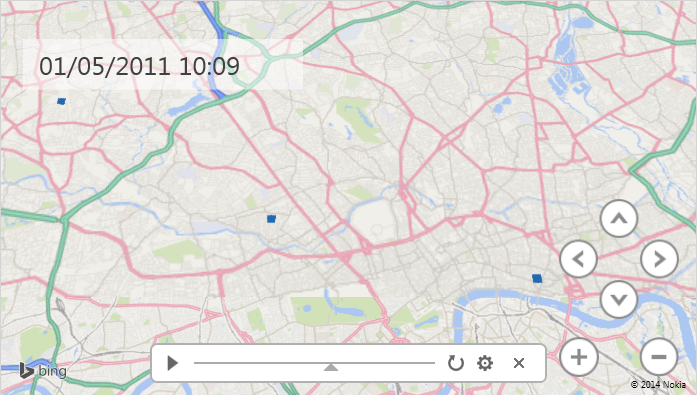


This can also be viewed by clicking Play Tour or Create Video in the Home menu.
Was this article useful? If so, please click the "Like" or "Tweet" buttons on the left-hand side. Want more articles - click here?
Do you have comments? Please write them below.
If you want to import GPS metadata into Microsoft Excel, please download a free 7-day trial of Filecats Professional. It allows extraction of this GPS metadata.
If you don't have or want to use Microsoft Excel, then try Filecats Metadata, which imports the same information into its own table.