Accessing document properties in Windows Explorer?
Introduction
Previous articles describe accessing Metadata in Microsoft Office, both using the File Menu and using Visual Basic for Applications.
This article investigates the two main sets of ways to viewing Document Properties in Windows Explorer.
- One set allows you to access them for one file at a time.
- A second way reveals them for multiple files.
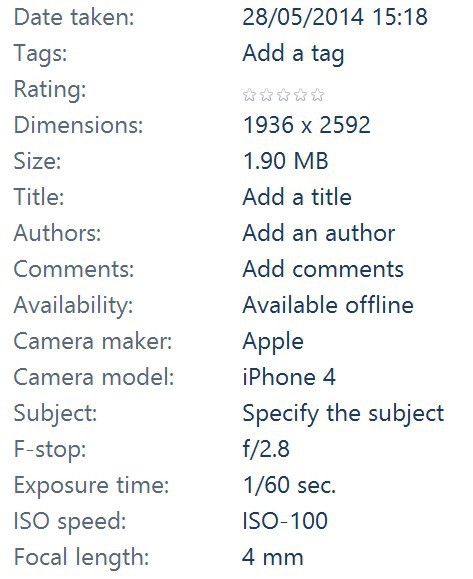
Both ways will only show file properties which are relevant for that type of file. If you are looking at a photograph, you will not see properties which are only relevant for audio files.
Accessing Document Properties in Windows Explorer, one file at a time
The first way is to use the Details Pane. This was introduced in Windows Vista, and is there in Windows 7, 8 and 10. (If you have Windows XP, then keep reading – there’s a second way.)
In Windows Vista and Windows 7, it is shown at the bottom of the window. Clicking on a single file shows some of the most common metadata.
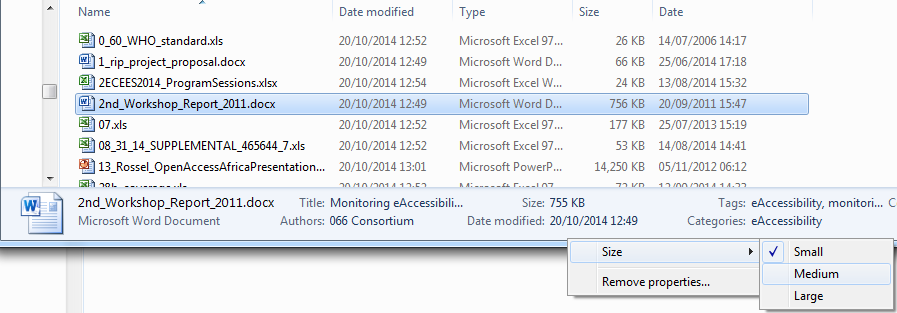
It should be noted that this pane is resizable. You can either drag the top of the pane up and down or, as shown above, you can right-hand click on the pane and select Size – Medium or Large.
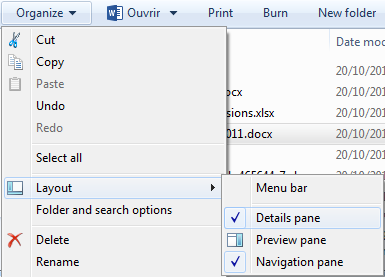
If it is not visible, then click on Organize – Layout and select Details pane.
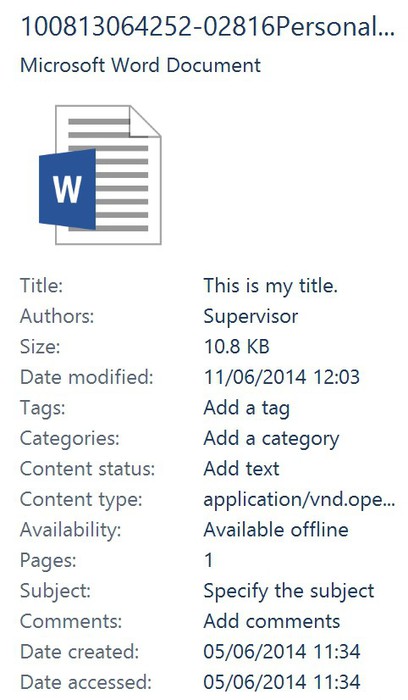
In Windows 8 the pane is shown on the right-hand size of the Window. Again, this pane is resizable.
If it is not visible, then go to View and select “Details pane”.
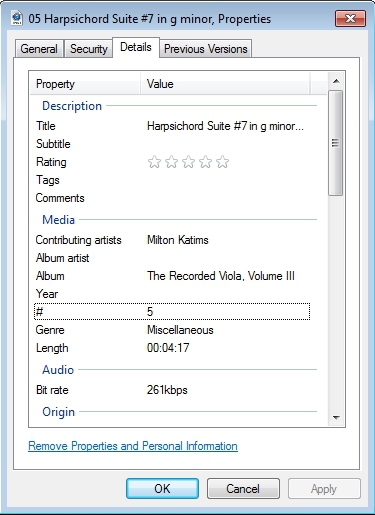
The second way is to right-hand click on the file, (left) click on Properties, and then go to Details (in Windows XP, this is called “Summary”). The resulting dialog box shows all the document properties which Windows can read.
Both of these ways allow you to edit certain properties. For example, you can change the “Version Number” or “Manager” for Microsoft Office documents by clicking in the box and updating it.
Some file properties cannot sensibly be changed in this way:
- for example, to actually reduce the number of words in a Word Document from 100 to 50 requires you to actually edit the document, not a number.
- Some other properties, maybe more surprisingly, cannot be changed in this way, such as the “Last Saved by” and dates.
Accessing Document Properties in Windows Explorer, multiple files
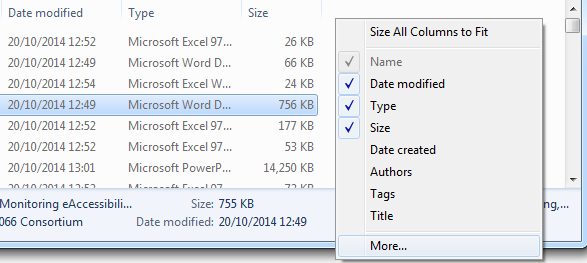
To view Document Properties for more than one file, you can right-click on the heading. A drop-down box will then invite you to add or remove columns.
If the columns you want to view are not there, then at the bottom of the list click “More…”.
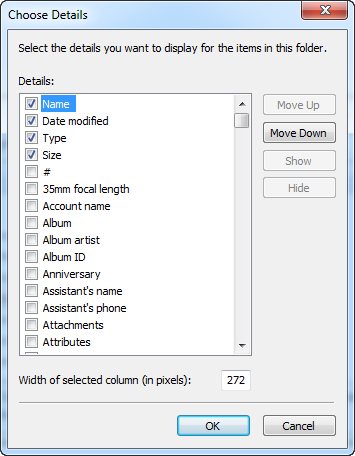
Clicking on this displays a “Choose Details” dialog. Here you can select which metadata you want.
Unfortunately, as it is in alphabetical order, it is not categorised, so Contact metadata is mingled with Office data and photographic data.
Therefore, it is best if you already know the names of the metadata you want to add. For example, if you looked for “Accessed Date”, you might be disappointed - you needed to look for “Date accessed” instead.
Once you have ticked which attributes you want to view, click “OK”. The extra columns then appear, and you can view and sort them.
Searching for metadata in Windows Explorer
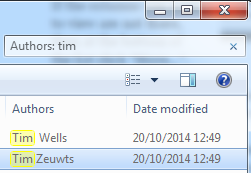
To search for a specific metadata, click in the Search bar and enter the name of the metadata, then a colon and a space, and then what you are looking for, e.g.
Authors: tim
This can search through folders and subfolders and show you the results.
Disadvantages of the above
There are four main disadvantages with viewing metadata in Windows Explorer:
- Not all metadata are visible in Windows Explorer. For example, this article demonstrates that very few GPS properties are visible in Windows Explorer (including two really important properties). In Windows XP, the quantity of metadata is significantly reduced.
- The metadata for MSG files is not visible at all in Windows Explorer, using either method.
- Additionally, the speed for viewing metadata in Windows Explorer is slow, especially on slower machines. Sorting by this metadata in a single folder is even slower. And searching through the data in multiple folders can take a very long time.
- Also, you cannot copy and paste the information that you see on the screen. It is only viewable.
Also, if you are searching for metadata in Windows Explorer, you need to know what might be to begin with. For example, you can’t click a filter and see all of the answers as you can in Excel. Also, unless the folders have previously been indexed, any new search means that the computer has to search afresh, which takes additional time.
A different way – the advantages
A better way to view metadata for multiple files would be to import it into a spreadsheet or table. The advantages to you by doing this are:
- The metadata only needs to be read once; if you do multiple searches on the same set of folders, there is no reading required the second time.
- You get a more comprehensive set of file properties extracted.
- You can copy and paste the data, and save it for further searches, thereby creating snapshots of data.
- It is much faster to sort and filter data, and you can see the variety of data available.
- You can create analyses very quickly with just a few clicks, something you cannot do with Windows Explorer.
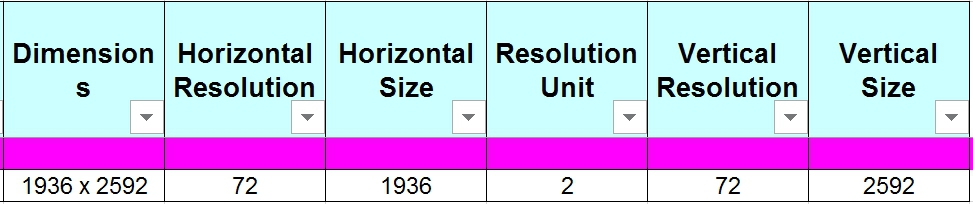


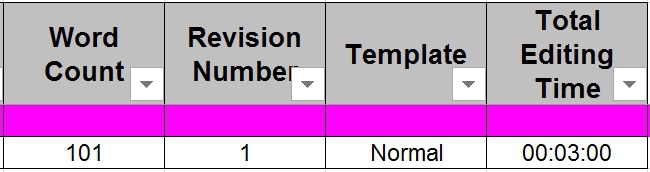


Because of the problems with viewing metadata in Windows Explorer, we have created two programs which give the advantages shown above:
- Filecats Professional catalogs files, folders and subfolders in Microsoft Excel. This creates a ready-formatted spreadsheet which can be instantly saved and emailed to others, with filters and other all the functionality of Excel available. PivotTables can be created in just a few clicks.
- Filecats Metadata catalogs the data into a self-contained table, and therefore does not require Excel. Analyses can be created in just a few clicks.
See how much easier it is to use than Windows Explorer. There is a free 7-day trial – download it today. What have you got to lose?
More Information
Do you want more information about different types of properties? Read about:
- metadata common to more than one type of file,
- Microsoft Office metadata,
- picture and photograph metadata,
- GPS metadata,
- audio and video metadata, and
- MSG (Outlook) metadata.
Want to know what metadata are actually used in Microsoft Office Documents? Find out the results of a survey of approximately 1,000 Word document metadata, Excel spreadsheets and PowerPoint presentations.